

Remove pimples in photos with AI
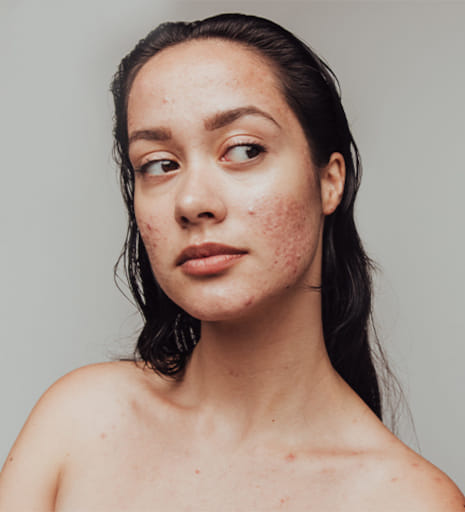
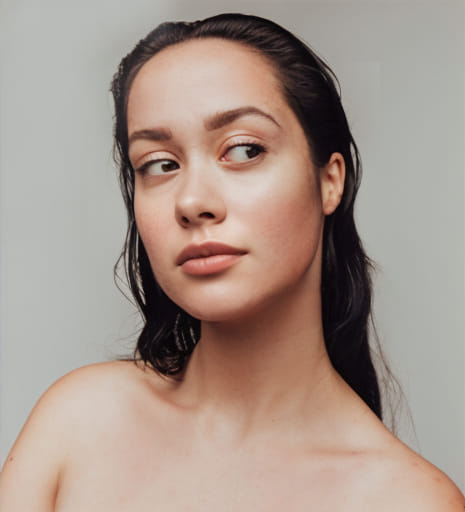
Remove temporary pimples without over-smoothing the whole face. Useful when the photo is good and only needs a small fix.
Privacy first
Photos are deleted automatically after 3 hours.
Getting things ready
Select face with closed eyes
Step 3 • Download
Your photo is ready
Get the HD version without a watermark.
Google sign-in first. Secure checkout opens next.
How to remove acne from photos?
This tool is meant for small portrait cleanup, not a total face rewrite. Upload the image, let the AI remove the temporary pimple, and keep the rest of the skin looking real.
1. Upload Photo
Start with the portrait you want to clean up.
2. AI Processing
The AI removes the pimple while trying to preserve normal skin texture.
3. Download ✨
Download the cleaned-up version once it looks right.
Pimple Removal Tool FAQ
Common questions about removing blemishes from photos with Enhance.cam.
How does the face selection work?
After you upload a photo, the tool runs face detection and shows you the faces it found. You click the one you want to clean up. It can detect up to 10 faces in a single image.
Does it remove everything automatically or do I pick what to remove?
You select the face and the AI handles the rest. You do not manually mark individual pimples. The trade-off is that you have less control over exactly what gets removed.
Will it blur my whole face or just fix the blemishes?
It targets the blemishes, not the whole face. That said, results vary. If the source photo is low resolution or very compressed, the area around the fix can look slightly softer than the rest.
What file types can I upload?
JPEG, PNG, and HEIC. iPhone photos work without converting.
How many credits does one edit cost?
One credit per face processed. If you want to fix two faces in the same photo, that is two separate edits.