How to Open Closed Eyes in iPhone Photos: 2 Fixes That Look Natural

Written by Enhance.cam Team on April 4, 2026

iphonetips
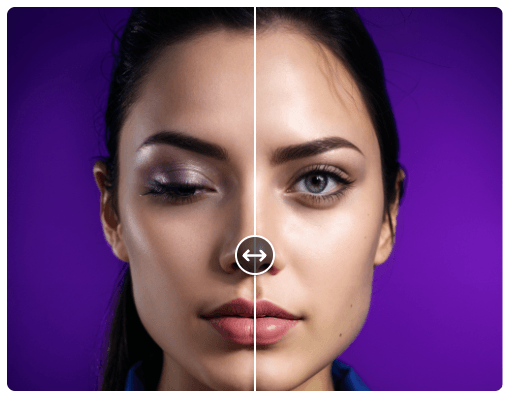
Before and after comparison of a photo with closed eyes being fixed

Yes, you can fix closed eyes in iPhone photos without retaking the shot. If one person blinked in an otherwise good picture, you have two realistic options: use a browser tool like Enhance.cam or use a dedicated iPhone app. For most people, the browser route is faster and easier. The app route makes sense if you want a little more manual control.

The annoying part about blinked photos is that they usually happen in the one frame you actually want to keep. Everyone else looks right. The timing is good. The pose is good. Then one person closes their eyes and the whole photo feels unusable. That is exactly the kind of situation AI tools are now decent at fixing.

Quick Answer: What Is the Best Way to Open Closed Eyes in iPhone Photos?

If you want the shortest answer, use Enhance.cam’s Open Eyes tool in Safari first. It is the easiest option if the photo is already on your iPhone and you do not want to install anything.

Use an app only if you want more manual control or you expect to fix several photos in one session.

Option 1: Use Enhance.cam in Safari

This is the option I would start with for most people because it is simple and does not add extra friction.

  1. Open Enhance.cam Open Eyes in Safari.
  2. Upload the photo where someone blinked.
  3. Add a reference image with open eyes if you have one.
  4. Let the tool generate the corrected version.
  5. Download the result to your iPhone.

This works especially well for:

The main advantage is speed. You can go from camera roll to fixed photo without leaving the browser.

Option 2: Use an iPhone App for More Control

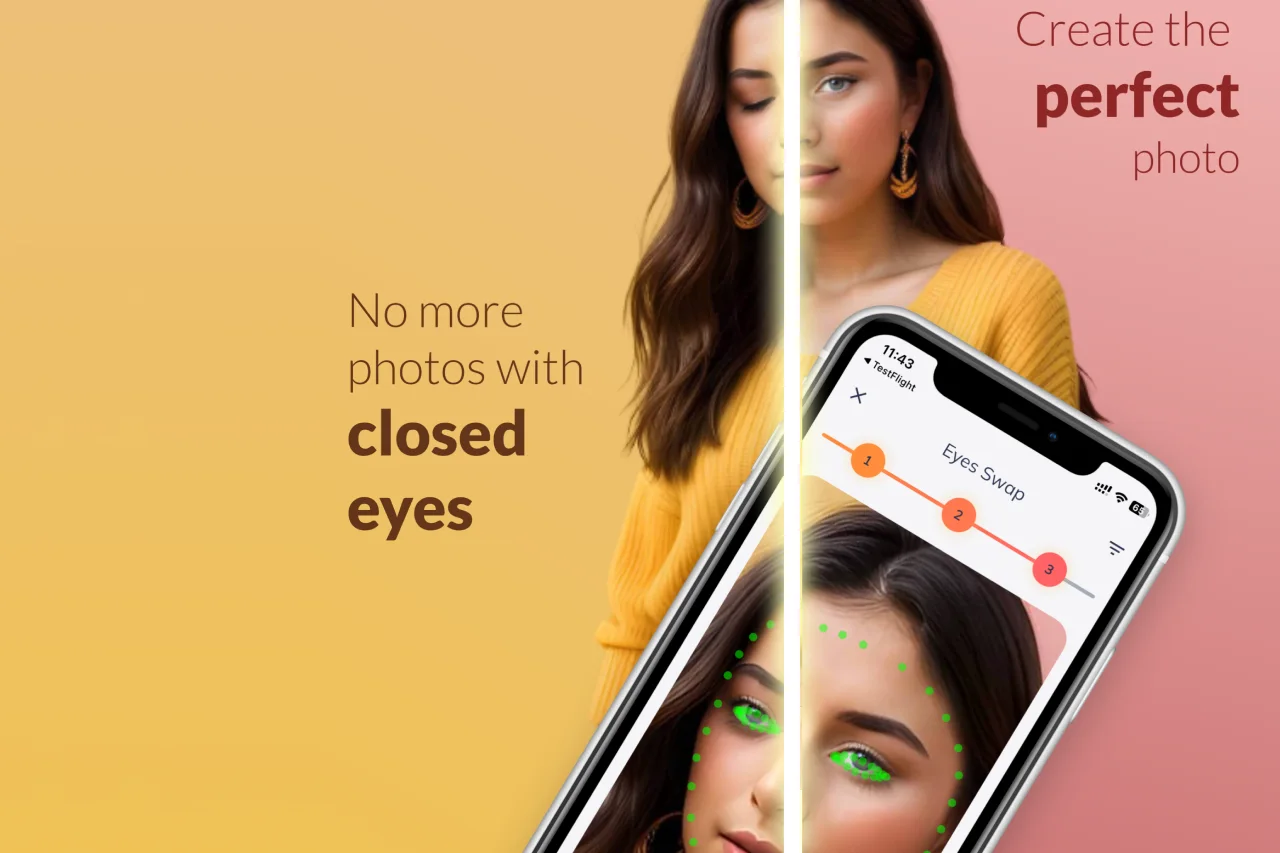
Photoleap app interface

If you prefer editing inside an app, Open Eyes: AI Face Editor is another option. You can find it on the App Store.

The basic flow looks like this:

  1. Install the app.
  2. Import the photo from your camera roll.
  3. Let the app detect the face and closed eyes.
  4. Pick the eye option that looks closest to the real expression.
  5. Save the updated image.

This route makes more sense when you want to test a few variations or when you prefer the app workflow over doing everything in Safari.

What Makes an Open-Eyes Edit Look Natural?

This is the part people usually skip, and it matters more than the tool itself.

If you want the result to look believable:

The best results happen when the tool only has to solve one obvious issue: the blink.

When This Usually Does Not Work Well

These tools are useful, but they are not magic.

You may get weaker results if:

In those cases, the edit can still work, but it is more likely to look slightly off.

Which Option Should You Use?

If you just want the fastest answer to “how do I open closed eyes in iPhone photos,” start in the browser. It is usually enough.

If you want more manual control, or you know you will be fixing several images in one go, the app route may be better.

How to Avoid Closed Eyes in iPhone Photos Next Time

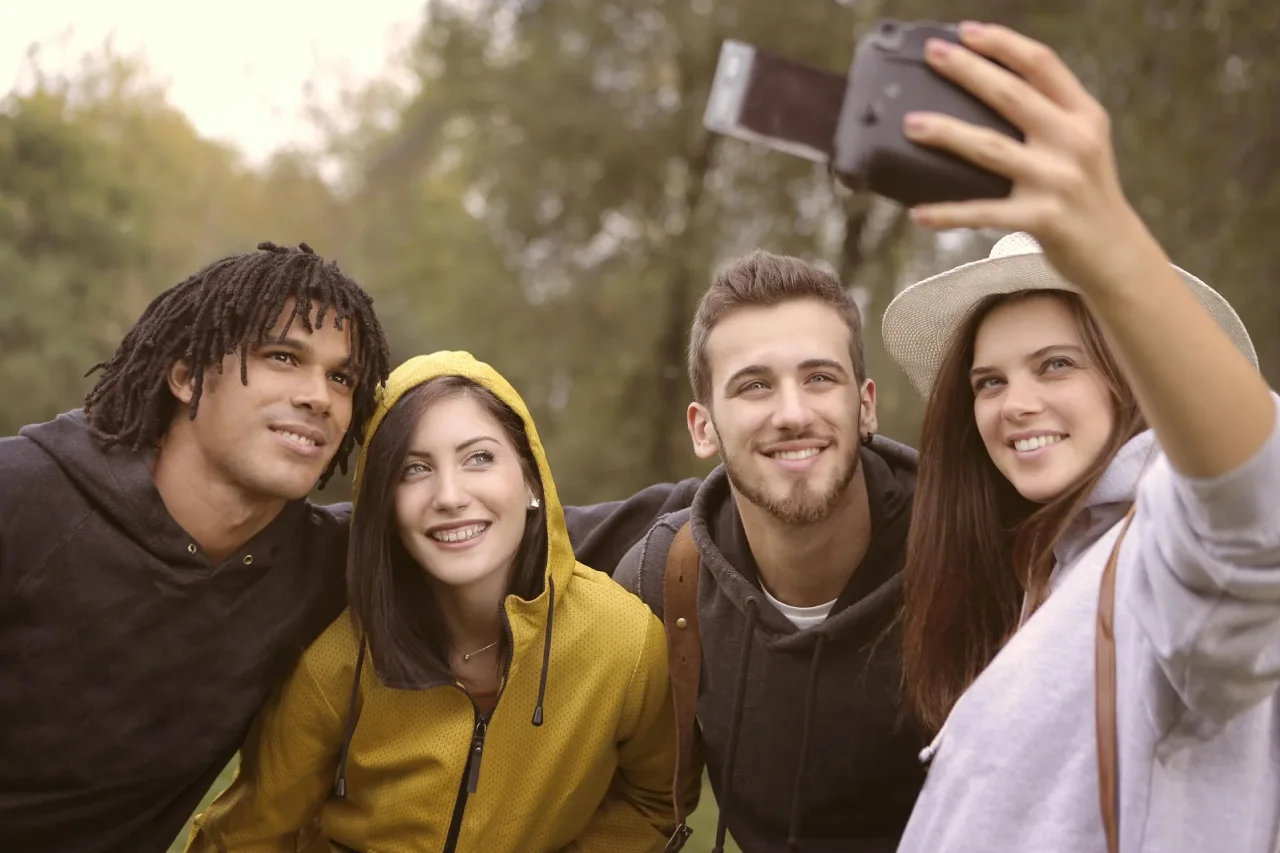
Taking better group photos

It is still easier when the original photo works. A few habits help more than people think:

Final Take

If the photo matters, it is worth fixing. A blinked photo used to be the kind of thing you just deleted. That is not really true anymore.

For most people, the cleanest option is to open Enhance.cam’s Open Eyes tool on the iPhone, upload the photo, and fix the blink in the browser. It is quick, low-friction, and good enough for the exact problem most people are trying to solve.


Enhance.cam Team
We're the Enhance.cam team. We build small AI tools for the photo problems people run into all the time, then write about what works, what does not, and how to get cleaner results.